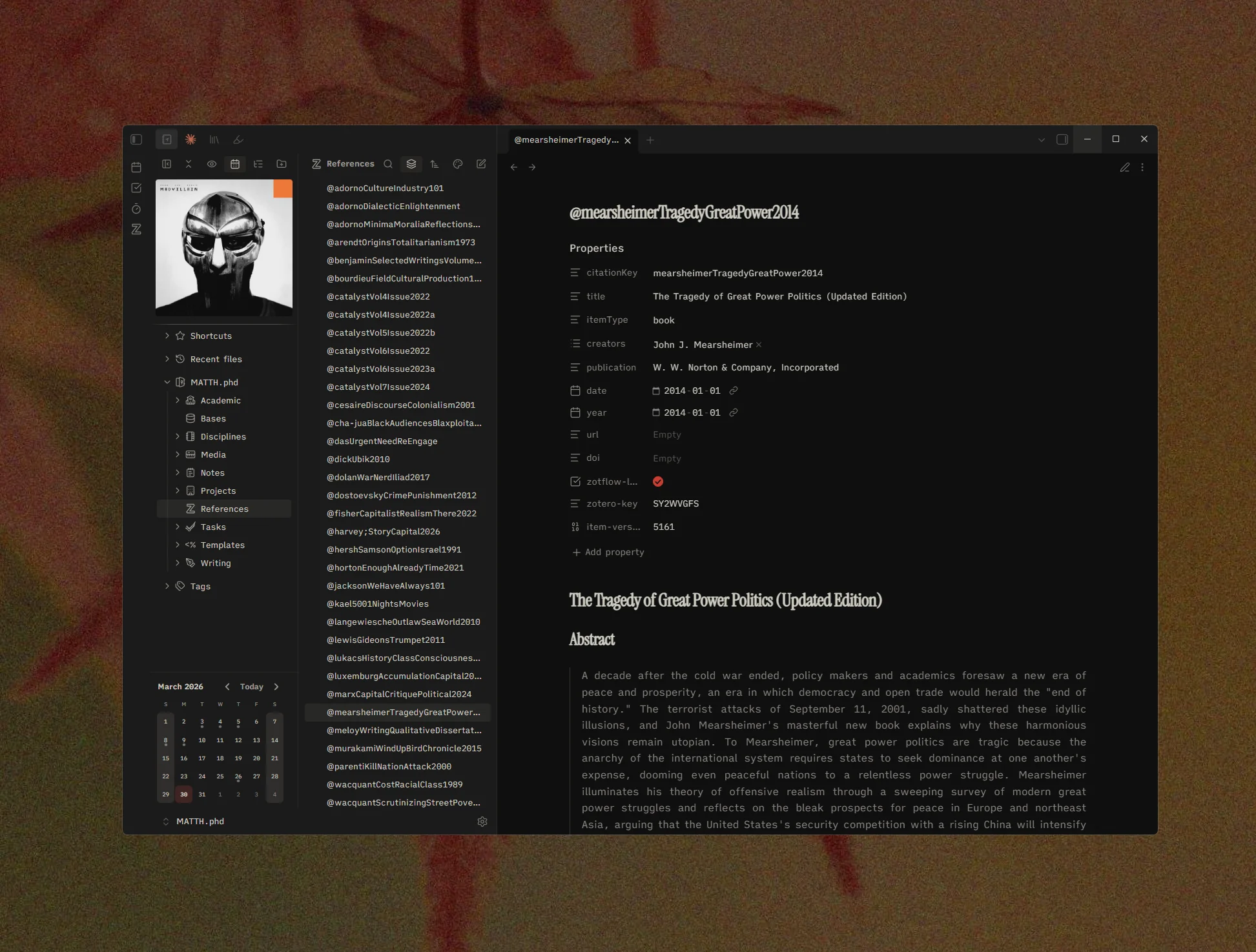
In the quest to find the perfect note-taking application, I went through:
- Evernote
- Google Keep
- Evernote again
- OneNote
- Notion
By the time I settled on giving Obsidian a real try, I had been floundering and hopping around to different applications for nearly a decade. All of my notes over those years were either written down in lost notebooks or locked to a platform I no longer used.
Obsidian solved the locked platform model; it’s all in plain-text, readable markdown.
Some things to keep in mind: these settings are always subject to change. You realize this when you work with Obsidian long enough, but changes come up. You want to try out new setups or some things seem more efficient or you just want a change. I’ve been through many iterations of my vault over the last two years and I’m someone who enjoys fiddling enough that I’ve stuck with it and will probably stick with it forever.
Additionally, much of my workflow has been heavily influenced by Steph Ango’s, the CEO of Obsidian. I have some personal differences in workflow here and there, but overall, I’ve found his work on thinking and writing extremely compelling. It’s structured, rational, and gets you to the important part of Obsidian—your own writings and thoughts quicker than going in without a system would. I highly recommend checking out some of his pieces on his site.
Starter Tips
Properties (YAML)
Settling on your properties early will save a lot of pain later. By standardizing this, you’ll start building significant linking early on in your vault, saving the time that many of us take having to reorganize everything later. You’ll probably have to do that anyways at some level, but probably far less than I had to. I have a standardized set of YAML that every note starts with:
---
categories:
types:
related:
aliases:
horizontalBanner:
---
What this looks like in practice using my note on author Gen Urobuchi as an example:
---
categories:
  - people
types:
  - authors
related:
  - [[Puella Magi Madoka Magica (2011)]]
aliases:
  - Urobuchi
  - The Urobutcher
  - Urobutcher
horizontalBanner: "[[Gen Urobuchi-002.webp]]"
---
A few things to note here:
- Part of Ango’s schema is to standardize the YAML properties as plural as well as leaving them all lower-case. This saves cognitive load in trying to figure out what you named a particular property later on. Early in my vault’s lifespan, for example, I’d used ‘category’ as a property as well as ‘categories.’ They were both being used for the same purpose, but without this naming convention, the bifurcation essentially served no purpose except to ruin my ability to locate the proper property.
- These properties should default to lists if you stick with the pluralization. In plain text then it’ll be rendered as it is in my Urobuchi example.
The scheme itself is pretty straightforward. ‘categories’ are the top-level structure, while ‘types’ are the differentiator. Gen Urobuchi is, at the top level, a person, but at the differentiator level, an author. Related is just links I know are related and relevant. These can usually be picked up by Backlinks, but I like to build the web early if I’m seeing it as I write it out. Pretty straightforward, easy to keep in mind, easy to recall and easy to enter into Obsidian Bases later. As a different example, here’s my YAML for a show:
---
title: The Garden of Sinners
sortTitle: Garden of Sinners20071201 - Overall
categories:
  - series
types:
  - "[[anime]]"
creator: "[[Nasu Kinoko]], [[ufotable]]"
released: 2007-12-01
genres:
  - "[[Action]]"
  - "[[Horror]]"
themes:
  - "[[Death]]"
  - "[[Identity]]"
  - "[[Supernatural]]"
director:
  - "[[Takahiro Miura]]"
writer:
  - "[[Nasu Kinoko]]"
  - "[[Hiroshi Yoshino]]"
status:
  - current
rating:
horizontalBanner: "[[The Garden of Sinners (2007).webp]]"
banner: "[[The Garden of Sinners (2007).webp]]"
---
Again, pretty straightforward, and some of this is expanded on in the Web Clipper piece.
Link Frequently
You want to save yourself time later by linking somewhat liberally. Each link will give you a page that connects to all of its other mentions via Backlinks. To give an example of how this worked for me—I was reading an article about Sam Altman in The New Yorker. The article mentions “effective altruism,” a term I remembered reading about but couldn’t recall the origin. By creating a wikilink of [[effective altruism]], I was able to create the page and pinpoint the exact articles where it had been mentioned before (a piece in WIRED magazine that I’d had notes on). Those kinds of connections are the ones you’ll be building in your vault, and starting early means the connections build over time.
Write Expeditiously
This is more of a general life tip, but I’ve found myself using it most in Obsidian—which is write expeditiously. Obsidian essentially begs you to get bogged down in things like design language and the exact placement of every last thing. I’m not above that, you probably won’t be either, but always be sure that you keep writing and keep working on things. Whether that’s taking notes on books or working on prose or whatever else, the editing process can come later. Get the first pass done and go back later. Focusing in on getting that first pass is the hardest part and also the most consequential.
Theme
The theme I use is the Minimal Theme by Steph Ango. It’s very customizable and has many small quality-of-life things that you might not realize initially will help your set-up.
The first thing I do with any application is customize the look as much as possible. Colors, font, text, getting rid of a UI I don’t want to see. One bad habit I picked up doing this is that pretty much every application I used became somewhat uniform. The most consequential of these choices was my stubbornness on serif text. I like the look of serif text and have been using it for many years. The issue though was the development of my astigmatism—which, at a certain point, started causing white text to halo and band on black backgrounds. It wasn’t until I read James Bedford’s piece on Making Obsidian Beautiful that I considered the use of other fonts to quell this via text rendering. The fonts I ended up using are (and need to be installed):
Interface font: iA Writer Quattro V Regular
Text font: iA Writer Quattro V Regular
Monospace font: Geist Mono
Other than that, your theme will probably change a lot. In my time trying them out, I’ve settled on three that I think stand a cut above the rest:
-
Minimal Very customizable and good standardization. A lot of my vault organization is derived from Steph Ango’s and his theme is a natural extension of that philosophy.
-
Baseline Another very customizable option that’s a bit more opinionated. It’s a very smooth design with lots of choices regarding interface buttons and overall application design.
-
Primary A very good theme that I think would work for most people. It’s the most opinionated of all but it has a lot of good intuitive choices and nice little animations that make it look especially good. I ended up moving to a different theme primarily because I wanted to customize the themes a bit more than it allowed.
Plugins
Plugins are a generally contested area in the Obsidian space. Some people use none, some people use every one they can find—I lean towards using none (despite having about 20 active at the time of writing). There are some I use that I wouldn’t necessarily recommend. For example I use Audio Player, which allows you to embed audio in your notes and take time-stamped notes. This can be useful, but if you don’t need it, it’s not worth installing. Additionally some plugins I have installed are directly useful for things like the Web Clipper, which I’m covering separately. Below are the ones I think are worth installing for most people.
Hider
If you’re finnicky with UI elements you want hidden, Hider is a good one to install. Made by @kepano, it works easily enough with Minimal Theme.
Image Converter
A good, customizable plugin for those who work with images to any significant amount. Its main utility is in its renaming function and its conversion function. Consider the use case—you want to add images to one of your notes, say screenshots from a film you’re watching. If you take a screenshot and insert it, it’ll insert with a strange filename and at a file size that gets prohibitively large in certain workflows. Image Converter changes both to whatever you specify. I usually set it to convert the image to webp at 85% and rename to the filename with increasing increment numbers in case you add multiple images.
Minimal Theme Settings
A straightforward plugin for the Minimal Theme that allows you to set things like color schemes and font sizes. Must-install if you go with the Minimal theme.
Notebook Navigator
If you’re coming from something like Evernote, Notebook Navigator has made quite a wave in the Obsidian space. I could never fully vibe with the stock Obsidian file explorer and went through a few others before ending up at this one. The dual pane mode makes it especially useful for large vaults.
Paste URL into selection
A very basic plugin that allows you to select some text and then CTRL+V a link into a perfectly formatted markdown link. This was the first plugin I ever installed and it’s never stopped being useful to me. I imagine there are other ways to do this, but it’s probably something that should just be in the base application to be honest.
Style Settings
A very useful application for styling your theme. It has robust support for both Minimal Theme and Baseline theme so if you’re a tinkerer, you’ll almost certainly end up with this plugin installed anyway.
Typewriter Mode
A different version of this plugin was my second install, and I’ve found this new one has less rendering issues with text. The basic idea is just that the editor repositions itself so that you’re always typing at a certain place. This helps if you write a lot of prose and don’t like the look of the work being on the last lines of the editor constantly. Might not be useful to everyone, but it’s definitely useful to me and I use it for writing constantly.